
8/28/2026 · Tutorials.app
How to create a QR code instruction manual for your product.
A step-by-step method for putting scannable instructions on a product: what to include, how to structure it for a phone, where to place the code, and how to test it before you print.
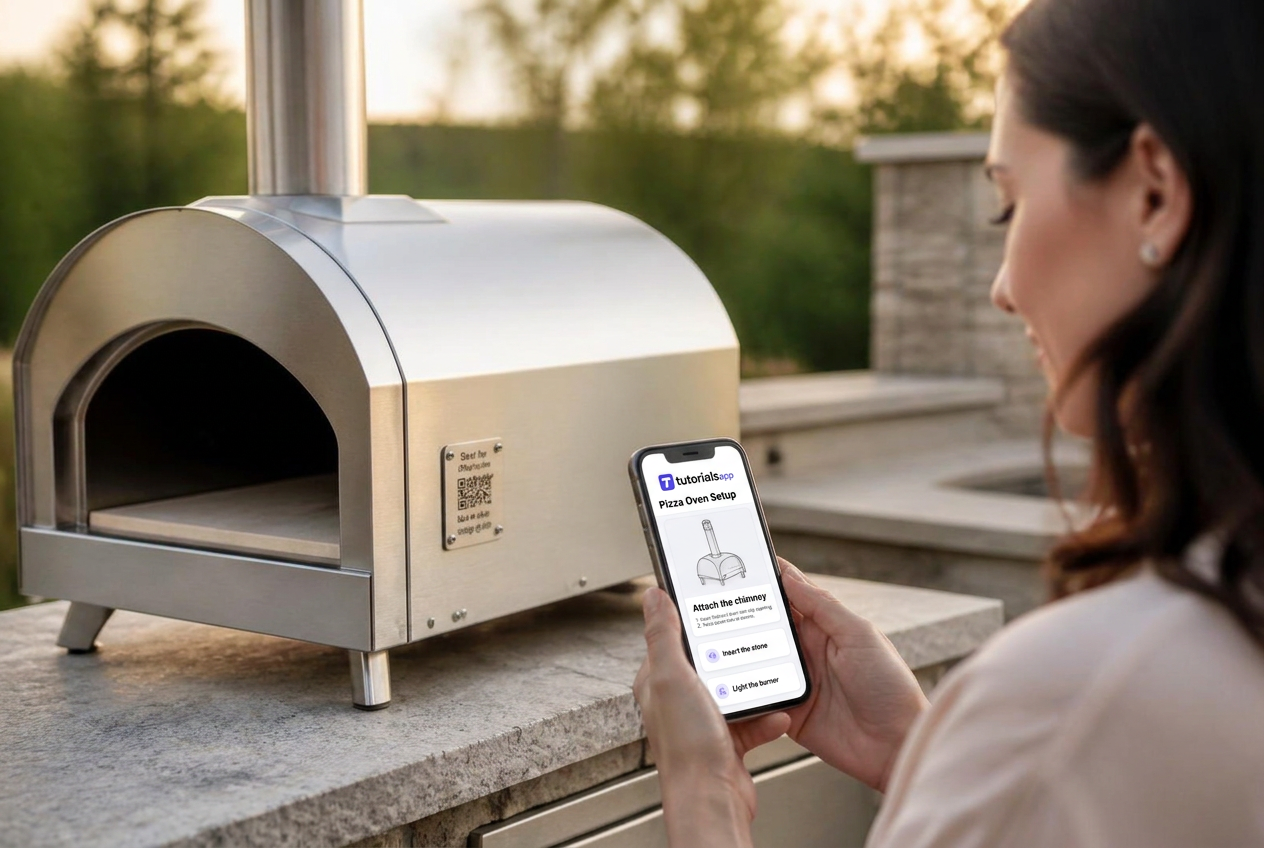
In short: to create a QR code instruction manual, write mobile-first instructions for one product model, publish them at a permanent URL you control, generate a QR code that points at that URL, print it on the product or packaging with a line saying what it does, and test the scan on real phones before the print run.
A QR code is the cheapest support channel you will ever ship. It costs a couple of square centimeters of print and replaces "see page 14" with instructions the customer already has in their hand. The mechanics are easy. The parts people get wrong are what sits behind the code and where the code goes.
What is a QR code instruction manual?
It is a set of product instructions published on the web and reached by scanning a printed code on the product, its plate, or its packaging. Conceptually it is a digital product manual with a physical front door.
How to make one, step by step.
Step 1: Decide what the customer actually needs.
Not everything at once. Start with the first five minutes — unbox, assemble, power on, first use — then add the recurring jobs: cleaning, filter or gasket changes, resets, and the two or three failures people mistake for a defect. If you are unsure what belongs, work through the manual checklist.
Step 2: Structure it for a phone, not for paper.
Shrinking an A4 layout onto a 6-inch screen is not the same as designing for it. One action per screen for sequences. A short list of clear entry points for reference material. Headings written as the question the customer would ask out loud.
Step 3: Add photos and short video.
Photograph your own parts, in ordinary light, with a hand in frame doing the action. For anything with a knack to it — priming a pump, seating a filter, aligning a bracket — a ten-second clip does more than three paragraphs.
Step 4: Publish to a destination you control.
Own the address. A URL on your own domain, one per model, is the asset here. Free code generators that route through someone else's short domain can expire, rebrand, or start counting your scans as a paid feature.
Step 5: Make sure the destination can change.
Products stay in homes and buildings for years. Never encode a link you cannot edit later — no direct link to a file with a version number in its name, no campaign landing page, no temporary sharing link. Encode a permanent address and change the content behind it. See [updating product instructions after shipping](/blog/update-product-instructions-after-shipping).
Step 6: Design the label so the scan makes sense.
A bare code is a gamble. Say what happens when it is scanned: "Scan for setup", "Scan for instructions", "Need help? Scan here", "Scan to descale". Print the short URL underneath for people who would rather type it, and for the occasional scanner that fails.
Step 7: Choose placement deliberately.
- On the product — Best for anything kept for years — a small plate near the control panel or on the base.
- Inside the lid — The first surface someone sees when unboxing, which is when setup questions happen.
- On the quick-start card — Replace half the printed sheet with one line and a code.
- Outside the packaging — Useful before purchase, but remember the box is usually thrown away.
There is more on that trade-off in QR codes on product packaging.
Step 8: Test before you print.
- Size — Around 2 cm square scans at arm's length. Go larger for machinery read from a distance.
- Quiet zone — Leave clear margin around the code. Crowding it is the most common scan failure.
- Contrast and finish — Dark code on a light background. Glossy laminate under a downlight defeats cameras.
- Surface — Test on the curve, the textured plastic, or the powder-coated metal you will actually print on.
- Vector for print — An SVG stays crisp at any size. An upscaled small PNG does not.
- Real phones — Old and new handsets, dim rooms, and one person who has never seen the product.
Should the code open a PDF or a web page?
A web page. A PDF opened on a phone means pinching, zooming, and a document that keeps its mistakes forever once it has been downloaded, bookmarked or emailed. A web page can be corrected, can carry video, and can be organized around questions instead of chapters.
Does the customer need an app?
No, and they should not be asked to install one. Every current phone camera reads QR codes natively. Requiring an app, an account, or a login before basic setup instructions is the fastest way to turn a scan into a support ticket.
Examples by product.
Espresso machine
Code on the drip tray housing. Setup, water hardness, and the descaling routine that generates most of the tickets.
Grill
Code inside the cabinet door. Assembly, gas connection checks, ignition troubleshooting, burner cleaning.
Air purifier
Code under the lid. Filter type, replacement interval, and how to clear the filter indicator.
Adjustable desk
Code under the controller. Cable routing, obstruction reset, and height memory settings.
Do printed QR codes break when I edit the instructions?
No. Republishing changes the content, not the address, so printed codes keep working.
How small can the code be?
Roughly 2 cm square is a safe minimum for handheld scanning, with clear margin around it. Increase the size with scanning distance.
Can I see how often the code is scanned?
Yes, if the destination is a page you control. Scans, views and drop-off tell you what to rewrite.
Can I restrict who sees the instructions?
Yes — a PIN can be required before the tutorial opens, which suits internal equipment and staff procedures.
What if the customer has no connection at that moment?
Keep essential safety and the shortest quick-start on the product or on paper, and let the scan carry the depth.
Create instructions your customers can reach with one scan
Publish a mobile tutorial to your own address and download a print-ready QR code as PNG or SVG.
Start free